Each screen below has a short loop to glance at, then the full recording with controls. The steps in the recording are numbered in the notes beneath it. The companies, customers and mail are made up.
Chats
Customer messages from every connected channel, in one list, with the AI's draft waiting.
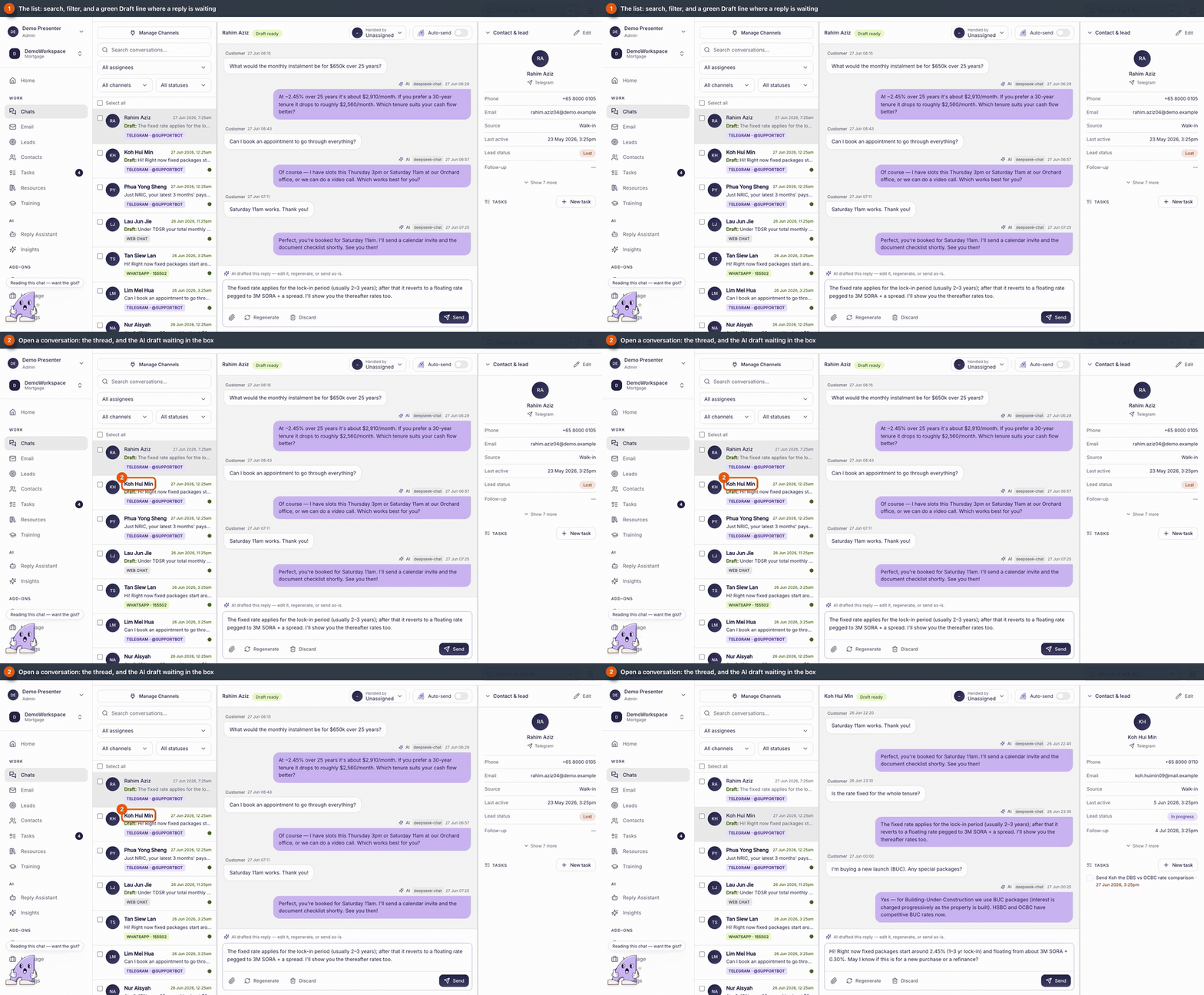
- The list. Newest first. Search, or filter by assignee, channel or status. A green line means a draft is ready.
- A thread with a draft. Edit it, regenerate it, discard it, or press Send. Nothing goes out until you do.
- Auto-send. A switch per conversation. It asks you to confirm, and a banner stays on the thread while it is on.
- The panel. The contact, their lead and any linked tasks. New task books a follow-up.
- Manage Channels. Connect a Telegram bot, a WhatsApp number or the website chat.
A Gmail inbox inside the CRM: threads in the middle, the open thread on the right.
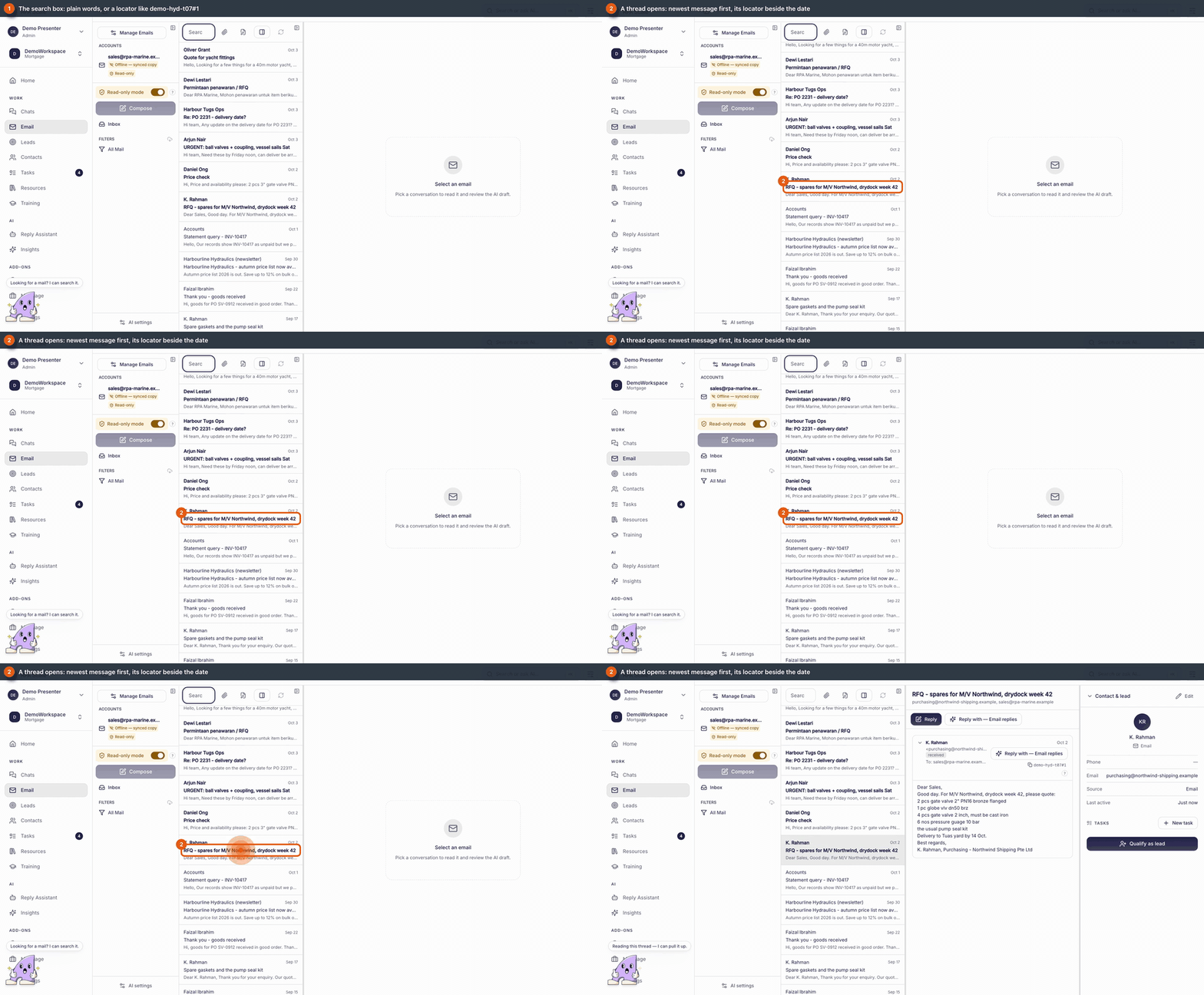
- Search. Plain words, or a locator such as
thread#3. - A thread. Newest message on top, older ones folded. Each received message shows its locator and a copy button; a paperclip with a number marks files.
- Read-only. With it on, nothing changes in Gmail: threads stay unread, drafts stay local, sending is off. Good for learning.
Leads and contacts
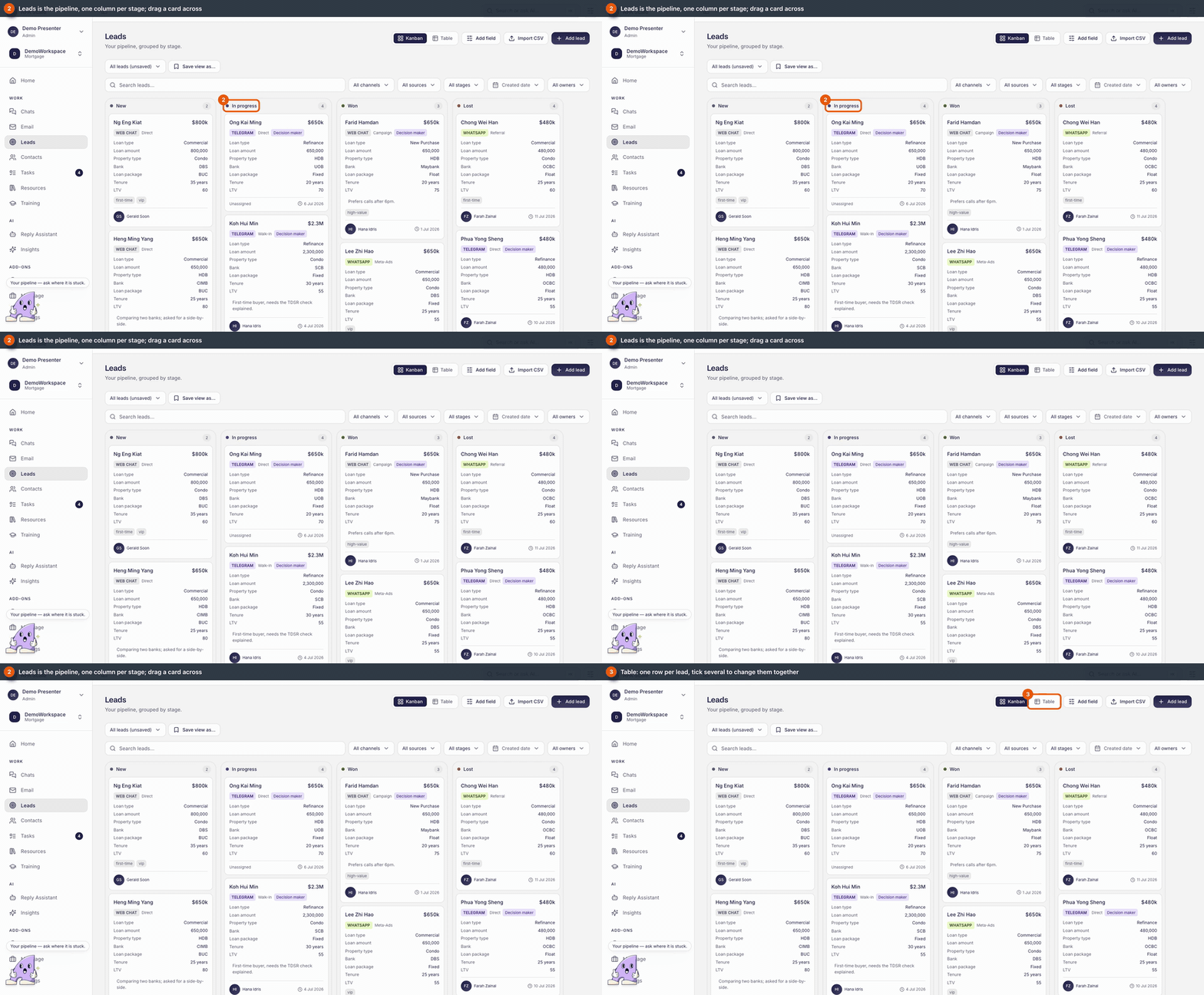
A contact is anyone you have talked to. A lead is a contact you are working as a deal.
- Contacts. Press Convert to lead on a row when it is worth following up.
- Kanban. One column per stage: New, In progress, Won, Lost. Drag a card across.
- Table. One row per lead. Tick several to change stage, owner or tags together.
- Filters and saved views. Filter by channel, source, stage, date or owner; save a combination under a name.
- The lead card. Details, owner, value, next follow-up, notes and a timeline of messages, changes and tasks.
Tasks
Follow-ups with an owner and a date, optionally linked to a lead or a chat.
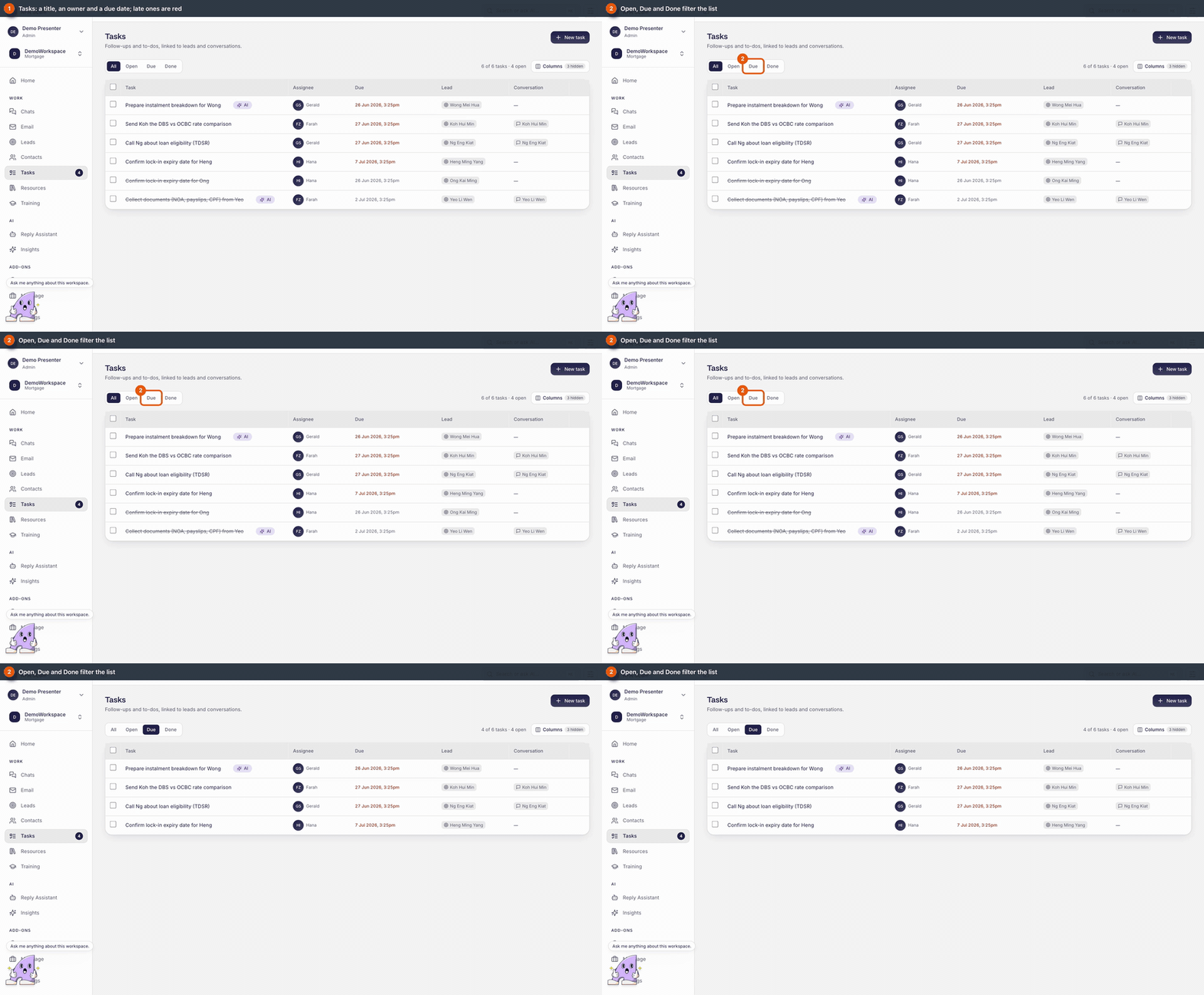
- The list. Soonest first; late ones are in red.
- Filters. Open, Due (within a day, plus late) and Done.
- New task. Title, assignee, date, and an optional lead or chat. Chats has the same button, already linked to that customer.
- Edit in the row. Change the owner or date in place; tick the box when done.
- Several at once. Tick rows, choose a field, set it, press Apply.
Ask your data
Insights answers questions in plain words, from the workspace's own leads, conversations, contacts and drafts.
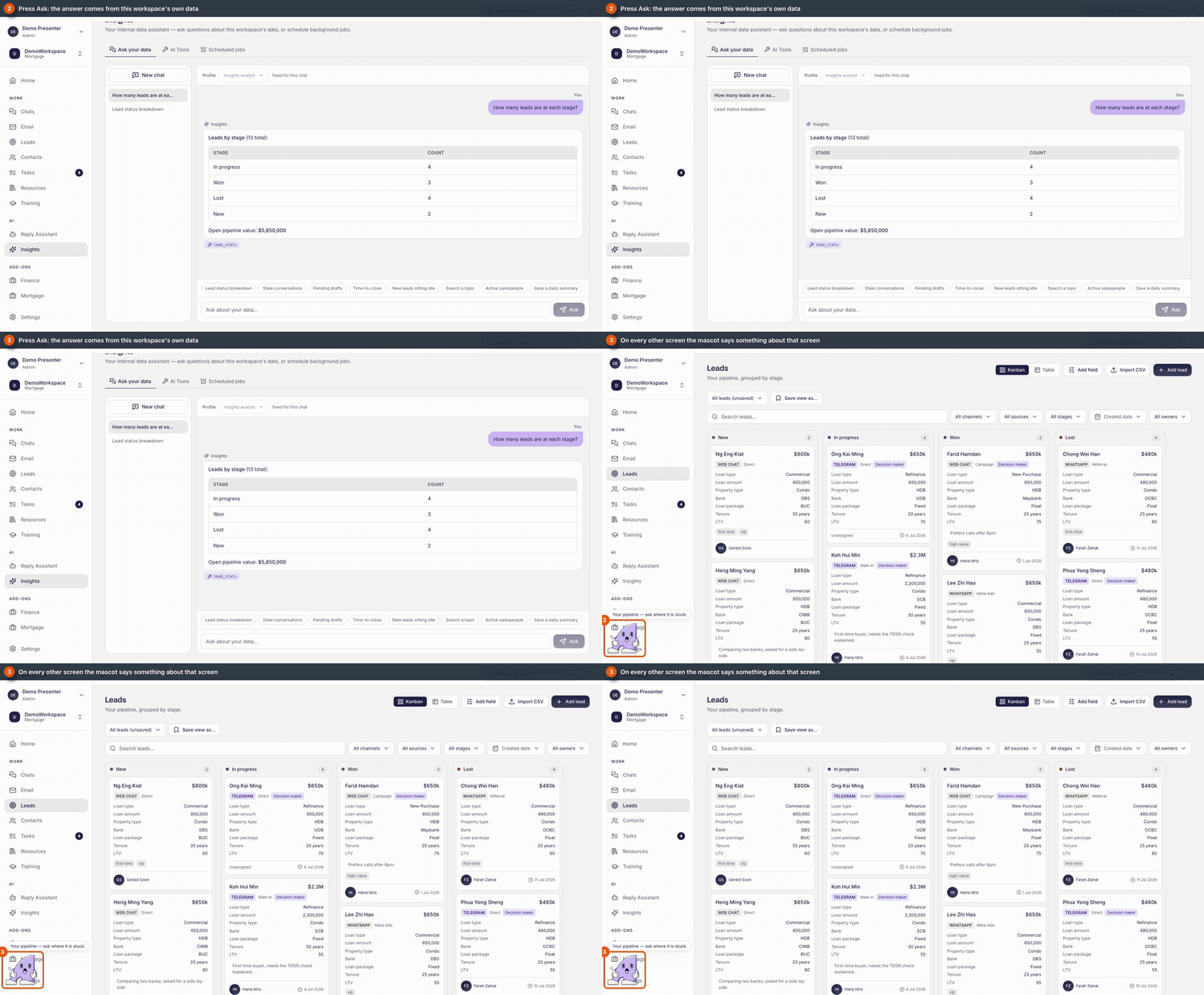
- Insights. Ask, for example, which leads have gone quiet. Every chat is saved on the left.
- The mascot. The same chat on every screen, with two starting questions that fit the screen.
- A suggested question. Click one to put it in the box; edit it, then press Ask.
- With a lead open. The questions change, for example the next best action for that lead.
- Move or tuck it. Drag it elsewhere, or tuck it into the edge; the tab brings it back.